Creating Pages Using Different Elements
We have offered wide range of features along with different styles. There are multiple custom Unyson elements with which you can easily add different features on your website. You just have to pick the element inside the Unyson Visual Page Builder while editing the page. Select the element to drop it inside the row and then configure the settings according to your requirements.
You Can Find All Custom Built Elements In This Section.
Front View News Slider:

Edit View:

Edit View:
Carousel slider Element
- Step 1 - Drop 'carousel slider' element from the Unyson Visual Editor Elements.
- Step 2 - Configure carousel Slider settings by clicking on the gear icon at the top right of section element.
- Step 3 - Click on the 'Save' button to save changes of your element.
- Step 4 - Update the page, and click on 'View Page' Link To View The Page.
Front View:
Edit View:
Edit View:
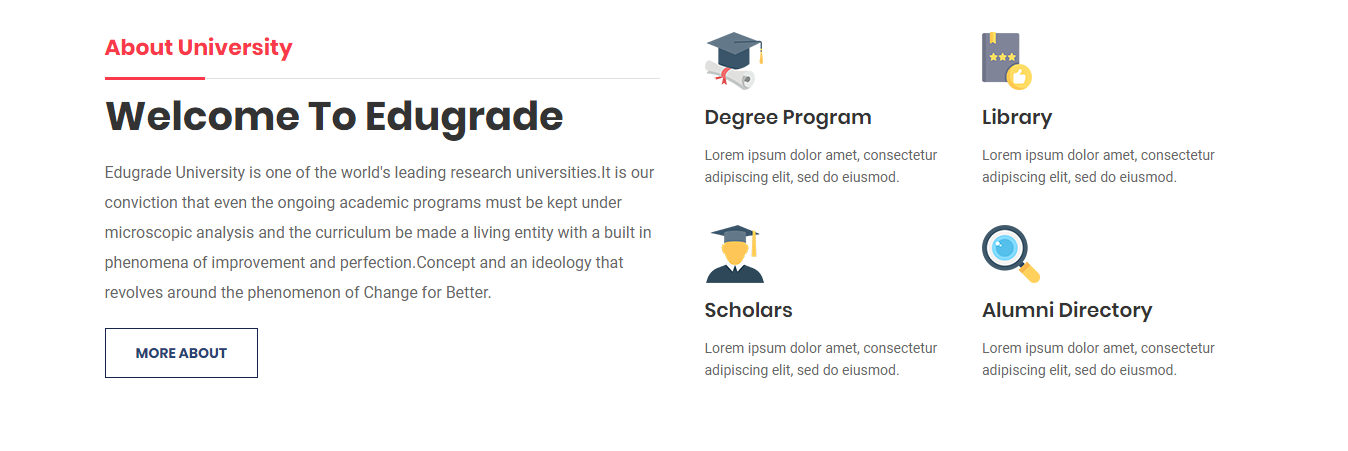
About Section
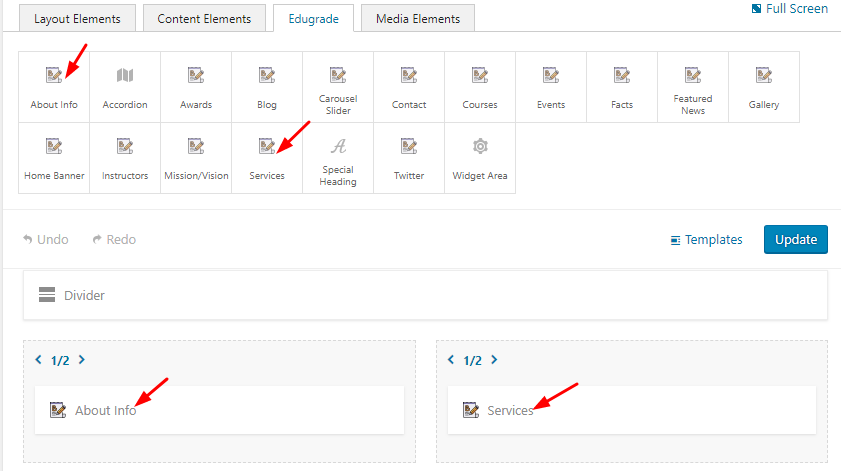
- Step 1 - Drop 1/2 column wrapper from the Unyson Visual Editor Elements.
- Step 2 - Drop About Info and Services Element from the Unyson Visual Editor Elements.
- Step 3 - Configure About Info and Services Element settings by clicking on the gear icon at the top right of section element.
- Step 4 - Click on the 'Save' button to save changes of your element.
- Step 5 - Update the page, and click on 'View Page' Link To View The Page.
Front View:

Edit View:

Edit View:
Campus Tour + Project Facts + Twitter
- Step 1 - Drop 1/4 and 1/2 column wrapper from the Unyson Visual Editor Elements.
- Step 2 - Drop 'Blog' and 'Facts' Element inside the column wrapper from the Unyson Visual Editor Elements.
- Step 3 - Configure section settings by clicking on the gear icon at the top right of section element.
- Step 4 - Drop 1/4 column wrapper from the Unyson Visual Editor Elements.
- Step 5 - Drop 'Twitter' Element inside the column wrapper and select the appropriate Widget by editing it.
- Step 6 - Click on the 'Save' button to save changes of your element.
- Step 7 - Update the page, and click on 'View Page' Link To View The Page.
Front View:
Edit View:
Edit View:
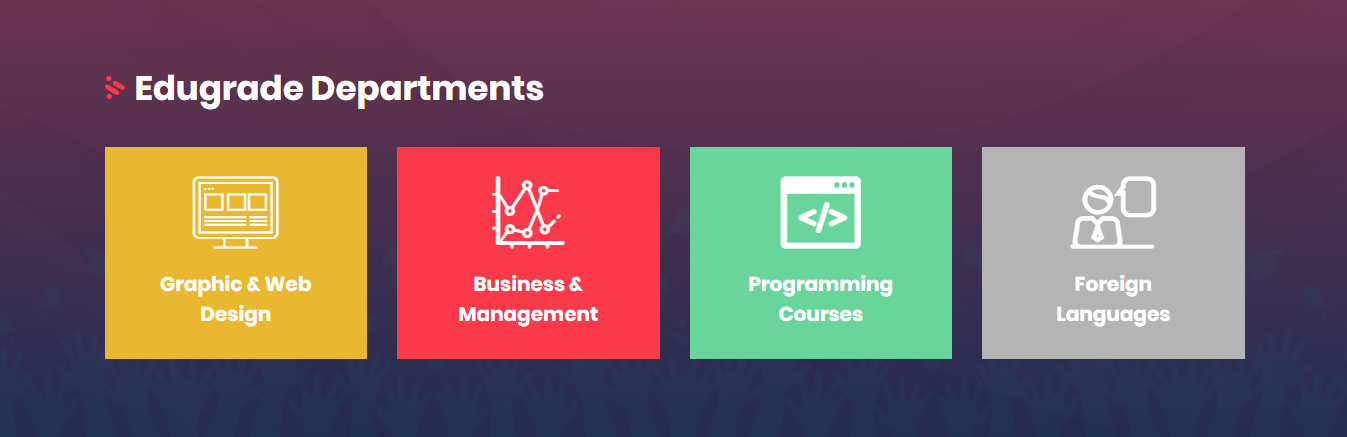
Edugrade Departments Section
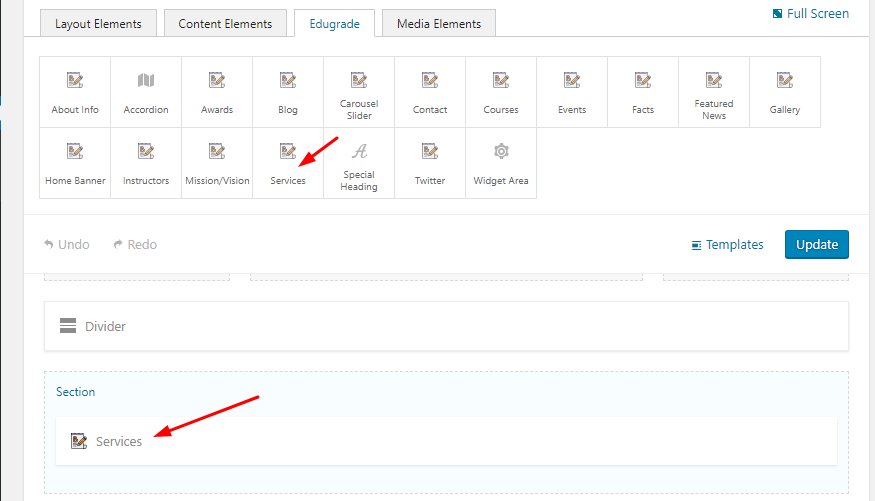
- Step 1 - Drop 'Services' Element from the Unyson Visual Editor Elements.
- Step 2 - Configure 'Services' Elements by clicking on the gear icon at the top right of section element.
- Step 3 - Click on the 'Save' button to save changes of your element.
- Step 4 - Update the page, and click on 'View Page' Link To View The Page.
Front View:
Edit View:

Edit View:
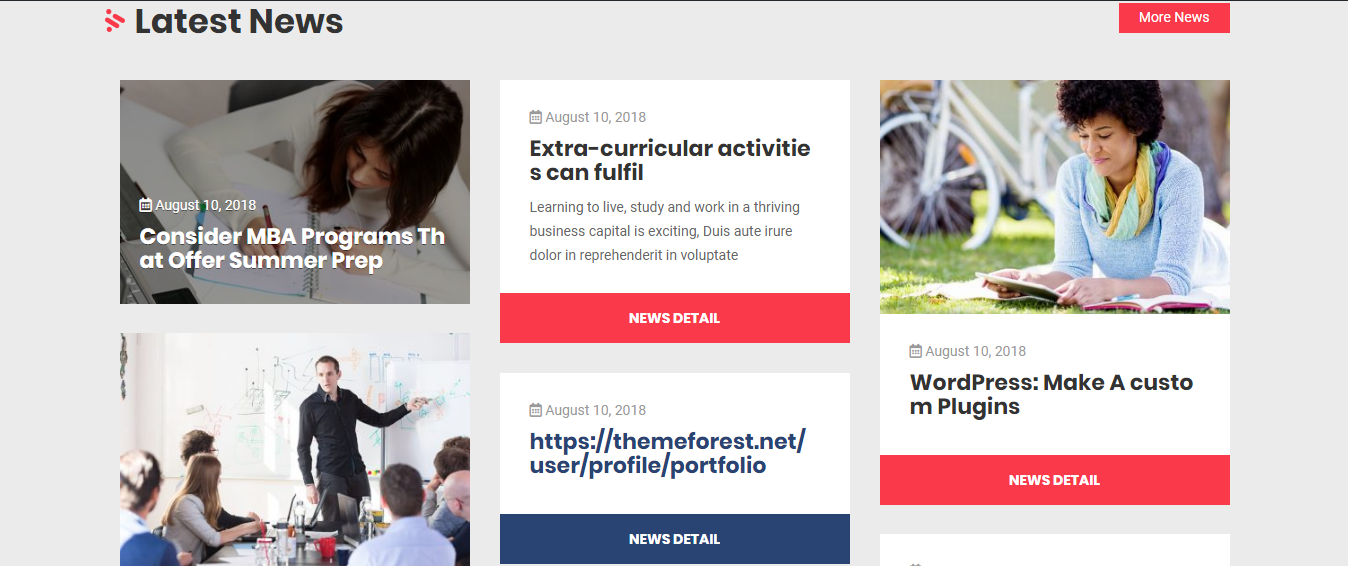
Latest News Section
- Step 1 - Drop 'Blog' element inside the column and fill the required information by editing it.
- Step 2 - Configure 'Blog' Elements by clicking on the gear icon at the top right of section element.
- Step 3 - Click on the Save button to save changes of your element.
- Step 4 - Update the page, and click on 'View Page' Link To View The Page.
Front View:

Edit View:

Edit View:
Upcoming Events Section
- Step 1 - Drop Events Element from the Unyson Visual Editor Elements.
- Step 2 - Configure Events Element by clicking on the gear icon at the top right of section element.
- Step 5 - Click on the 'Save' button to save changes of your element.
- Step 6 - Update the page, and click on 'View Page' Link To View The Page.
Front View:
Edit View: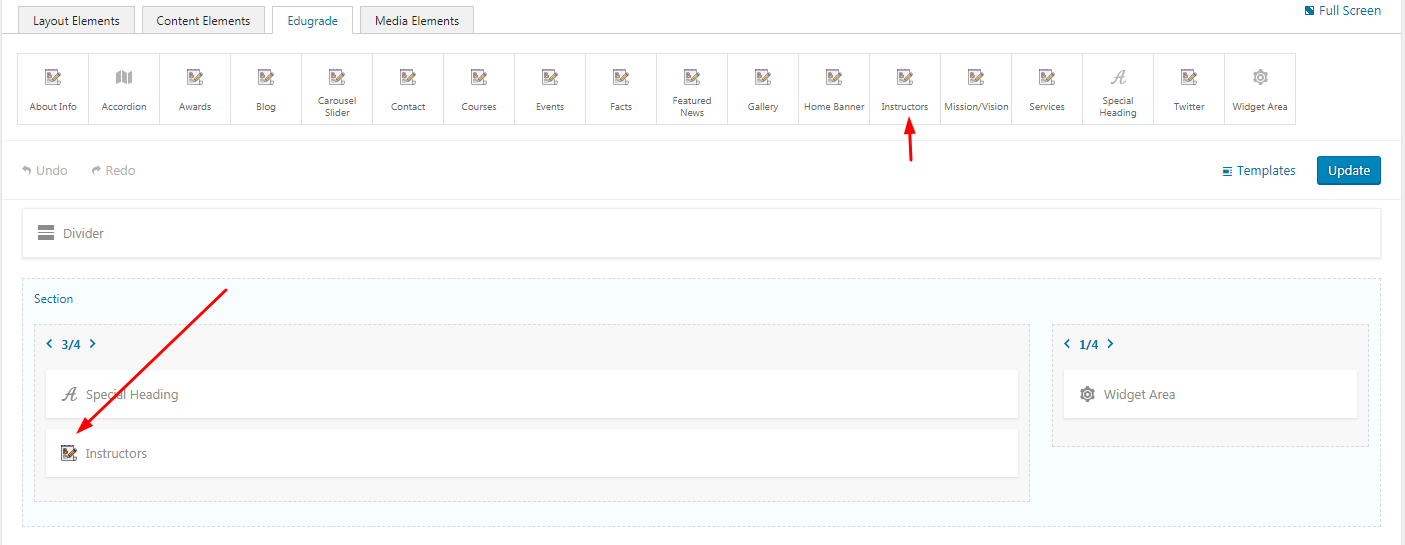
Edit View:
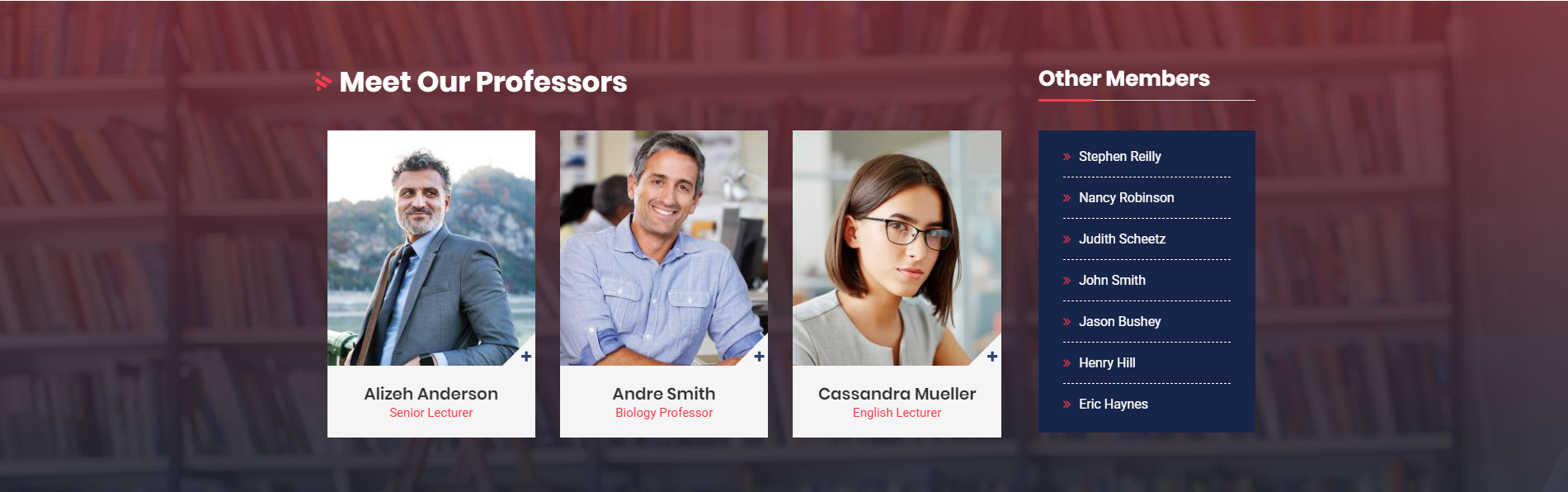
Instructors Section
- Step 1 - Drop Instructors Element from the Unyson Visual Editor Elements.
- Step 2 - Configure Instructors Element by clicking on the gear icon at the top right of section element.
- Step 5 - Click on the 'Save' button to save changes of your element.
- Step 6 - Update the page, and click on 'View Page' Link To View The Page.
Front View:

Edit View:

Edit View:
Contact Panel Section
- Step 1 - Drop Services Element from the Unyson Visual Editor Elements.
- Step 2 - Configure Services Element by clicking on the gear icon at the top right of section element.
- Step 5 - Click on the 'Save' button to save changes of your element.
- Step 6 - Update the page, and click on 'View Page' Link To View The Page.